How It Works
Get started with RespectPlay in minutes. Download the app for your device and here's how it works for team managers, officials, and sporting communities.
Create Your Account
Get up and running in under a minute
Download the App
Download RespectPlay from the App Store or Google Play, open it, and tap Sign Up to create your account.
Enter Your Details
Fill in your name, email address, and choose a password (at least 8 characters). Confirm your password to continue.
Accept Terms & Privacy Policy
Review and accept the Terms of Service and Privacy Policy. You can read the full text of each before agreeing.
You're In!
Your account is created and you'll be taken straight to the Games screen, ready to browse fixtures and provide feedback.
Browse Games
Find recent and upcoming fixtures for your association
Select Your Association
Tap the association picker at the top of the Games screen to choose which association's games you'd like to view. If you belong to multiple associations, you can switch between them at any time.
Switch Between Recent & Upcoming
Use the Recent tab to see completed games (where you can provide feedback) or the Upcoming tab to see scheduled fixtures.
View Game Cards
Each game card shows the date and time, home and away teams, venue, competition, assigned officials, and whether feedback is available or already submitted.
Tap for Full Details
Tap any game card to see the full match details including scores (for completed games), venue address, competition and season info, and a full list of match officials.
Provide Feedback on Officials
Structured, constructive feedback that helps officials improve
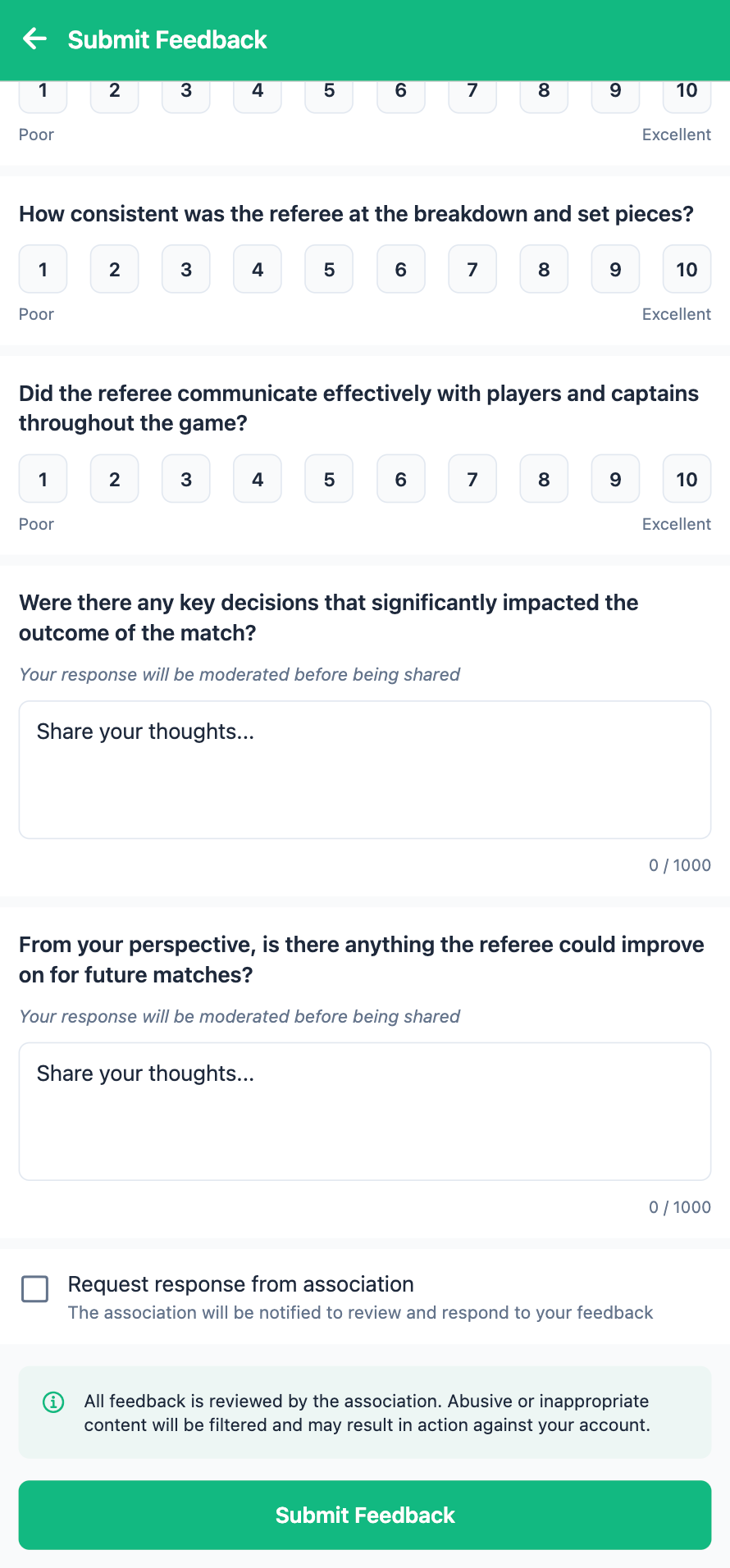
Open a Completed Game
From the game detail screen, tap Submit Feedback. This button is available for completed games within the feedback window set by your association.
Rate Three Key Areas (1–10)
Score the official on three scales: Game Flow (how well they managed the tempo), Consistency (at breakdowns and set pieces), and Communication (with players and captains).
Answer Two Written Questions
Share your thoughts on key decisions that impacted the match and any areas for improvement. Written responses are moderated by AI before being shared.
Request a Response (Optional)
If you'd like the association to review and respond to your feedback, tick the Request response checkbox. The association will be notified to follow up.
Club Environment Feedback
After the game, officials can rate the club environment to help improve standards across the community. This feature is only available to referees and umpires.
Open Club Feedback
Once the game is complete, officials can open the game detail screen and tap Submit Club Feedback to rate the club environment for that match. The button is visible while the feedback window is open.
Rate Five Categories (1–5 Stars)
Rate the club on Manager Behaviour, Spectator Behaviour, Safety, Hospitality, and Facilities. Each category uses a simple 1–5 star rating.
Add Comments (Optional)
Include any additional observations about the club environment. All comments are moderated before being shared with the association.
Track Your Feedback
See the status of everything you've submitted
Visit the Feedback Tab
Tap the Feedback tab in the app to see a list of all your submitted feedback across all games.
Check Submission Status
Each entry shows the date, your rating, and a status badge: Approved, Under Review, Flagged, or Rejected. You'll also see a badge if you requested a response from the association.
View Moderated Feedback
Your feedback is shown in its moderated form. AI moderation ensures all shared content is constructive and respectful while preserving the substance of your input.
AI-Powered Moderation
All feedback submitted through RespectPlay is automatically reviewed by our AI moderation system. Abusive, discriminatory, or inappropriate content is flagged and sanitized before it reaches officials or administrators. This ensures a safe, professional environment for everyone in the sporting community.